Skip to content

Industry

Canteen cards for any canteen, on paper or on the phone.

The canteen gets its own page with the menu, and from there people put money on their canteen card, or on their child's. They pay with a printed card or a phone, the till takes the card with a single scan, and the kitchen gets a list of the day's pre-orders. You choose what each canteen uses, and the money is in the canteen's own Stripe account as soon as it is paid.

KuvertCanteen card

DKK 42.00

Emma, 4B

Balance

KAN-8QF2-2K9D

Show the QR code at the till.

Top up

Anyone who has the card's code can top up. This is only an example. See the scenarios

Balance: DKK 42.00.

01

Recognise it?

Situations you know

This is the day-to-day Kuvert has to handle.

The child has no phone
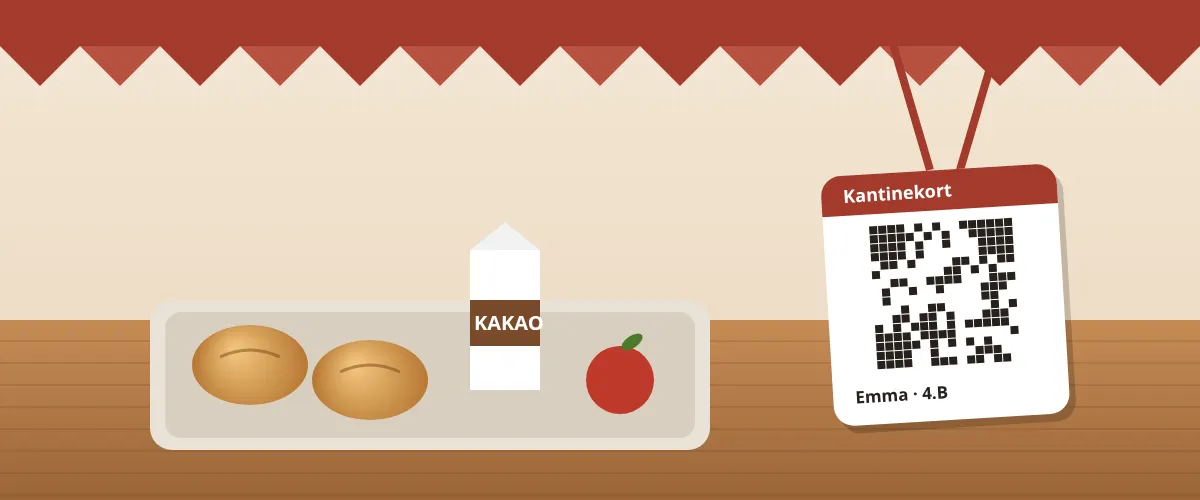
The canteen card is a QR code, and it works just as well on paper. The canteen pastes in the class list and prints the cards the size of a payment card, ready to cut out, and they go home in the school bag. If the child has a phone, the card can also sit in Apple Wallet or Google Wallet with the balance on it.
Grandma wants to top up
Anyone who has the card's code can top up with MobilePay or a card. The page shows only the child's first name and the canteen, so grandma can see it is the right child, and the parents get an email saying money has come in.
No sweets, and DKK 40 a day at most
In a school canteen the parents set a limit per day or per week and block the categories they do not want to pay for, e.g. sweets. The till says no straight away and says why, so the child is not left waiting while the queue grows.
The break is 30 minutes, and the queue is long
The till shows the canteen's items as buttons. The card is scanned, the till sees the name, balance and what has been ordered in advance, and one tap pays. If something is not on the menu, the till keys in a different amount.
Teachers need a staff price
If the canteen switches staff prices on, it enters the school's email domain. A teacher enters their work email and gets a link, or uses the school's staff code. Then they see the staff prices and the items only staff can buy, and get their own canteen card, which the till recognises as staff.
Lunch has to be ordered in advance
Lunch can be ordered up to 7 days ahead, and by default until 9.00 on the day, by the parents or by whoever the card belongs to. The money is taken straight away, and a cancellation before the deadline puts it back on the card. The kitchen gets a list per day with the number of each dish and a packing list per card, and at the till they tap «Udlever» (hand out) when the food is collected.
Show all 10
The card has been lost
The card is blocked from the card's own page, and the till refuses it straight away. If a new one is made, the balance, the limits and the pre-orders move with it, and the old card stops working.
The child changes school
The parents tap «Get the money back», and whatever is on the card is sent back free of charge to the payments it came from. If part of the balance was put in as cash at the canteen, it shows on the canteen's dashboard as an amount the canteen pays back itself.
The canteen is at a workplace
There are no children here, so you switch «Kort til børn» (cards for children) off. Each employee creates their own card on the canteen's page, tops it up and orders lunch themselves, without parents or limits. Without staff prices everyone pays the same, and the food carries 25% VAT.
There is only one canteen
You switch Kantine on in the dashboard, choose school, workplace or another canteen and give it a name, and it is created. With only one canteen you never have to choose between places. If you run several, each gets its own page and its own settings.

The canteen till

Till

Søhøjskolen

Emma · 4.B

KAN-7K9F-2XQD

Balance: DKK 64.00

Spent today: DKK 0.00

Tap what the child is buying.

The parents' phone

The card is scanned, and the child taps what they are buying. Choose whose card is on the counter, and try it yourself.

Whose card is scanned?

The till shows name, class and balance, so it is the right child. Tap an item, and it is taken off at once.

02

What matters most

What matters most for canteens

A card that does not need a phone
The printed card is enough, and the phone is optional. Both show the same code, so the till treats them the same.
MobilePay
Card holders, parents and grandparents top up with MobilePay or a card, with no app and no account to create.
The parents' own limits
On children's cards: a limit per day or per week, blocked categories and an email when the balance runs low. Both parents can follow the same card.
The staff's own door
Work email or staff code. Staff get their own prices on the same food and their own selection, both at the till and in the shop.
Pre-orders and the kitchen's list
Ordered and paid from the card before the deadline. The kitchen sees how much to make for each canteen and can print the list.
VAT per sale
A school can sell VAT-free to its pupils when the canteen is the school's own. Sales to staff and in canteens without children carry 25% VAT. Every purchase records its VAT, and the report can be downloaded as a CSV for the accountant.
Show all 8
Several canteens in one shop
Each canteen has its own page and its own settings and can have its own items. A school and a workplace can sit in the same shop, and the money lands in the same Stripe account.
You choose what the canteen uses
Cards for children, staff prices, online top-up, cards people create themselves and pre-ordering are switched on and off for each canteen. Without online top-up the money goes on at the till.
03

See it in use

Open Skolekantinen

Skolekantinen is our demo for canteens: a fictional business with a real Kuvert shop behind it. The website is theirs, and the button is ours. The shop is in test mode, so you can click around without a single krone being charged. The other industries are alongside.

Canteen

Skolekantinen

Lunch at two schools and the town hall

Two school canteens and a town hall. Parents put money on their child's canteen card, the town hall staff have their own, people pay with a printed QR code or a phone, and lunch can be ordered the day before.

04

Questions

Frequently asked questions

What does it cost?

There is no monthly plan. A top-up on a canteen card costs a 2% + VAT service fee and a DKK 5.00 handling fee per top-up. By default the canteen pays the service fee, and the person topping up pays the handling fee. You choose who pays what. Sales at the till cost nothing.

Do the children need a phone?

No. The printed card is enough, and many schools have no phones in lessons. If the child has a phone, the card can also sit in Apple Wallet or Google Wallet, but that is optional.

Can people get their money back?

Yes, at any time and with no fee. You tap «Get the money back» on the card's page, and the money goes back to the payments it came from. Money put in as cash at the canteen is paid back by the canteen itself, and Kuvert shows the canteen how much.

How do staff get access?

When the canteen has staff prices switched on, you enter your email domain, or make a staff code, or both. Whoever uses their work email or the code counts as staff on that device for half a year and sees the staff prices and the staff's own items. Without access, those items can be neither seen nor bought.

What is the smallest amount you can top up?

A new canteen accepts top-ups from DKK 50.00 upwards. Each canteen sets its own smallest and largest amount and the amounts the page suggests.

What does Kuvert know about the card holders?

The name and, if you enter it, the class or department, and the email of whoever manages the card. Children have no login, and it is the parents who create and manage their cards. When a card is closed, the name is deleted 13 months later, while the bookkeeping stays.

How do we get started?

You switch Kantine on yourself in the dashboard, choose whether it is a school, a workplace or another canteen, and give it a name. The canteen is then created with what suits it, and you add the menu and make the cards. Everything can be changed afterwards.

Set up your shop this week.

Create the shop, connect Stripe and add your products. No monthly fee on sales and no lock-in.